October 1, 2026 · 11 min read · Pineflows team
How to Paper Trade in TradingView: The Complete Guide
Master how to paper trade in TradingView with this step-by-step guide. Learn setup, alerts, and simulation best practices for 2026.

You've found a strategy that looks convincing on a TradingView chart. The entries line up, the equity curve behaves, and the temptation to connect a broker arrives before you've tested what happens when a signal fires twice, arrives late, or never reaches the execution layer. That's where many promising systems stop being theoretical successes and start exposing operational weaknesses.
Learning how to paper trade in TradingView is therefore more than opening a virtual account. You need to configure assumptions that resemble your intended trading conditions, test how signals are generated, and inspect whether the complete path from Pine Script to an execution event behaves as expected. Paper trading can reduce the cost of mistakes, but it can't automatically prove that your live workflow is ready.
Table of Contents
- Why Paper Trading Requires More Than Just Virtual Money
- Setting Up Your Paper Trading Simulator
- Configuring TradingView Alerts for Simulation
- Simulating the Automation Pipeline
- Best Practices for Realistic Backtesting
- Transitioning from Simulation to Live Markets
Why Paper Trading Requires More Than Just Virtual Money
A trader can validate a strategy's chart logic and still have an untested trading system. The strategy tester may identify entries and exits according to historical bars, while a live workflow must handle alert timing, order states, duplicate messages, and the destination that receives the instruction. Those are different tests.
TradingView's paper environment uses virtual money with live market data, and the platform makes it available to all users, as described in its paper trading documentation. That makes it useful for practicing order execution without risking capital. It doesn't mean every simulated fill reproduces the behavior of a broker or an external automation service.
Consider a simple breakout strategy. On the chart, the condition becomes true and the strategy records an entry. In a manual test, you click the order and review the result. In an automated setup, the alert might trigger on every update, trigger only at bar close, or send a repeated event after a reconnect. If the receiving system doesn't identify repeated events, one chart condition can become multiple orders.
Two tests that traders often confuse
Strategy validation asks whether the rules would have produced trades under the chosen historical assumptions. You examine entries, exits, position sizing, and the resulting simulated performance.
Operational validation asks whether the system communicates and handles those decisions correctly. You inspect the alert condition, payload, delivery status, order response, and state changes after the event.
The first test can be strong while the second remains completely untested. That's the backtest bias beginners discover late, when a clean chart result collides with latency, missing messages, or an order that remains open after the strategy believes it has exited.
Practical rule: Treat the chart as the decision engine and the alert-to-order path as a separate system that needs its own evidence.
TradingView's futures paper-trading expansion illustrates why operational detail matters. The 2025 update added support for execution, expiration, fees, balance changes, automatic closing of expired positions, and automatic cancellation of linked orders across the futures lifecycle, as documented in TradingView's futures paper-trading update. Account History and the Trading Journal also record executions, which improves reviewability. A simulator becomes more useful when it models what happens after an order is placed, not only whether a signal appears.
Setting Up Your Paper Trading Simulator
Start from a chart in TradingView and open the Trading Panel at the bottom of the workspace. You can also access paper trading from Supercharts. Select Paper Trading, connect to it, and confirm that the paper account, rather than a live broker connection, is active. TradingView describes this connection as a short setup process through the chart or panel in its official paper-trading guide.
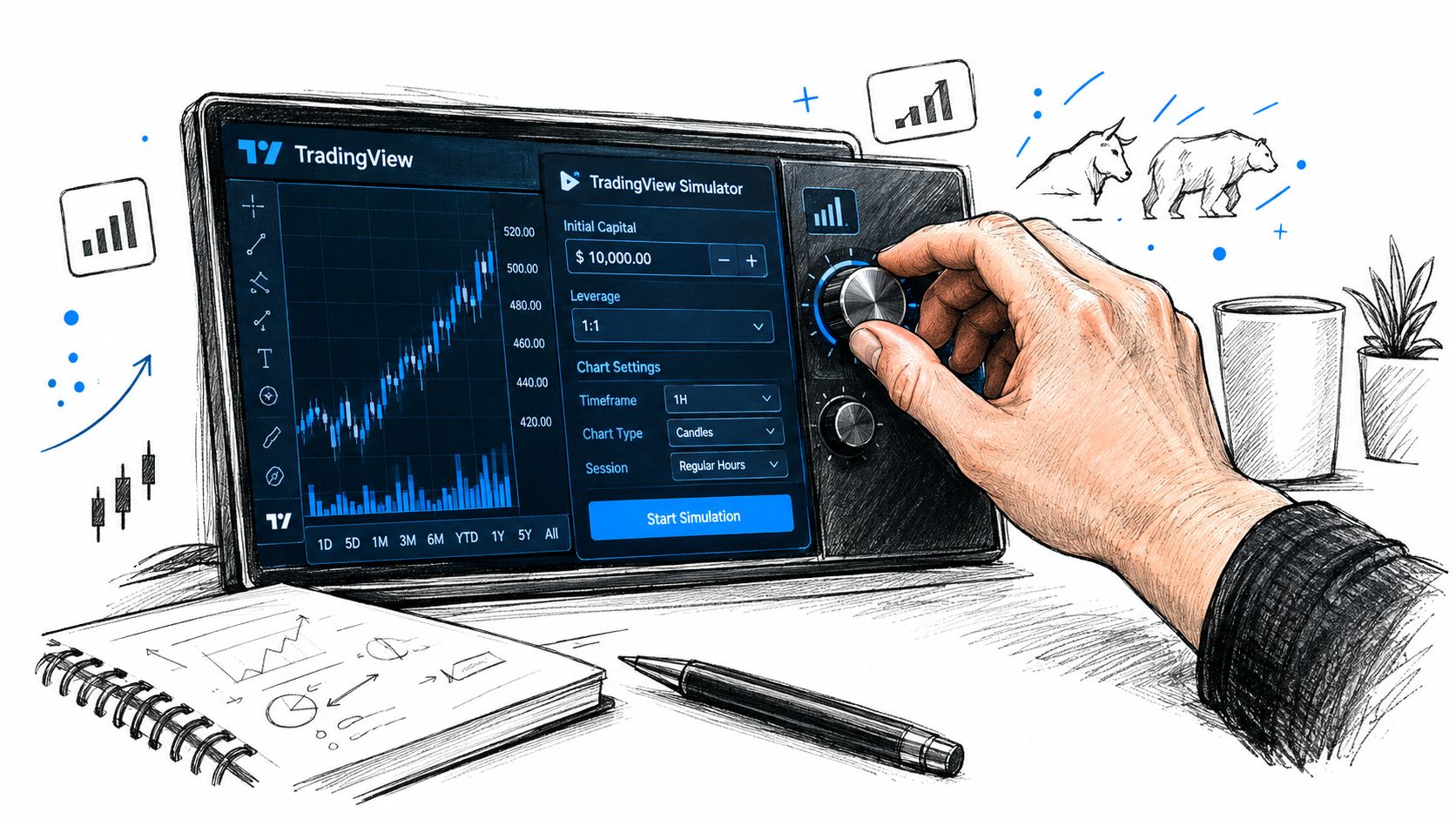
A blank virtual balance can encourage careless sizing. Configure the simulator before placing the first order:
- Set the initial balance. Use an amount that resembles the capital you expect to trade, not an inflated figure that makes every position feel harmless.
- Choose the currency. Match the account currency to the market and the account you intend to use.
- Adjust margin requirements. Apply the margin assumptions relevant to the instrument. Margin changes the exposure represented by the same amount of available capital.
- Add commissions. Include fees so the result reflects the cost of entering and exiting positions.
- Review instrument rules. Stocks, forex, crypto, commodity futures, and index futures don't share identical trading behavior or account constraints.
TradingView documents these configurable parameters and supports the major asset classes listed above in its simulator. Realism comes from matching the settings to your intended workflow. A large balance, generous borrowing exposure, and missing commissions can make an unremarkable strategy appear more effective than it is.
Use the account interface as a record, not just a balance display. Review open orders and positions, then inspect Account History and the Trading Journal after fills. For futures, pay particular attention to expiration handling and linked orders, because the platform now records more of the simulated lifecycle than a basic entry and exit view would show.
This short walkthrough can help you locate the relevant TradingView controls before you start a test.
Resetting or changing the account should be treated carefully. A clean test is useful when you change instruments or rules, but preserve screenshots or external notes first if you need to compare results later. The TradingView account itself is only one record. Your own trade log should contain the strategy version, market, setup, intended risk, and the event details that the platform doesn't answer on its own.
Configuring TradingView Alerts for Simulation
A paper trade can confirm that you know how to place an order. It can't confirm that an alert carries the exact information an execution system needs. For that, create alerts that represent the signal path you plan to use rather than relying only on the Strategy Tester's historical output.
TradingView documents several alert approaches in its alert configuration guidance:
- Strategy order alerts can fire when a strategy generates an order event.
- Indicator conditions can notify you when a plotted condition or indicator reaches its defined state.
- Custom
alert()calls let Pine Script control when a message is emitted and what information it includes. - Order-fill events can represent the point at which TradingView considers a simulated order filled.
These options answer different questions. An indicator alert may prove that a condition appeared. A strategy order alert can show that the strategy created an order. A fill event can show that the simulated account registered an execution. None of those alone proves that an external destination received, parsed, deduplicated, and acted on the message.
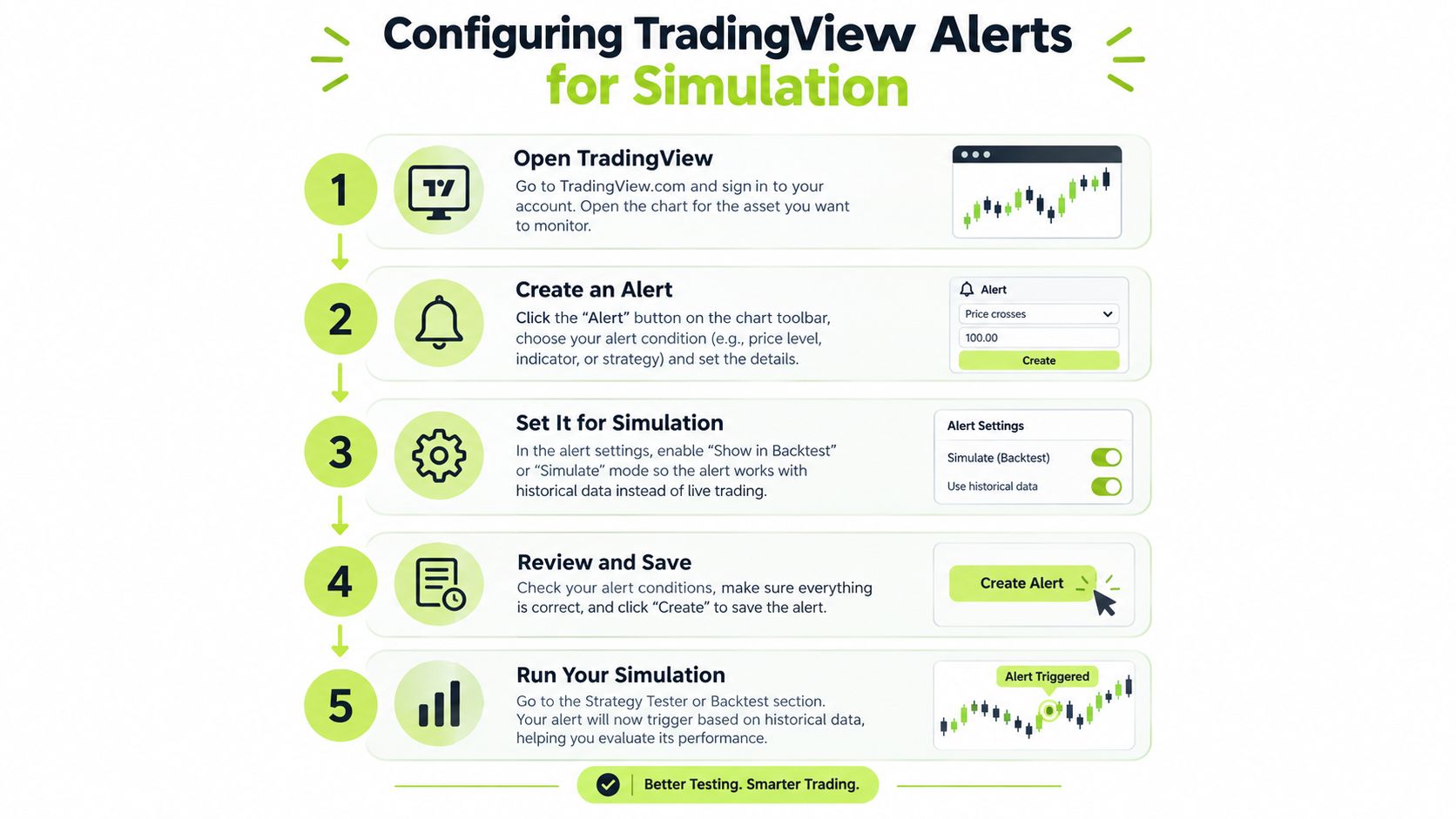
Build the alert around the future workflow
Write down the event contract before creating the alert. At minimum, decide which symbol, direction, quantity or sizing instruction, strategy identifier, and event identifier the receiving system must understand. If the Pine Script emits a long entry and a separate exit, the downstream workflow should distinguish them clearly instead of inferring intent from incomplete text.
TradingView's alert settings offer different trigger frequencies, including once, every time, bar close, and once per minute. The choice can materially alter the number and timing of events. A strategy designed around confirmed bar closes shouldn't be tested with a frequency that produces intrabar messages unless that behavior is intentional.
The platform's guidance explains how to create alerts, but it separates alerts from paper trading's description as a simulator for manual practice in live market conditions. That leaves an important boundary: a paper account can measure what happened after a simulated trade, while the alert configuration determines how a signal leaves the chart. Test both layers and record the timestamps.
For a practical reference on connecting a TradingView alert to an automation workflow, review this TradingView alert setup guide for Pine Script strategies. Use it to compare your event design with the requirements of the system that will eventually receive the message.
Simulating the Automation Pipeline
The useful question isn't only, “Did the strategy make money in paper trading?” Ask, “Can I account for every signal from creation to final simulated state?” That change in perspective turns paper trading into a staging environment.
Start with a controlled event. Trigger a known Pine Script condition, then check the sequence:
- Signal creation: Did the strategy or
alert()call produce the intended event? - Alert delivery: Did TradingView send the message at the expected frequency?
- Payload inspection: Does the message contain the correct symbol, side, size, and event identifier?
- System response: Did the receiving service acknowledge the event?
- Order state: Was the corresponding simulated order created, filled, rejected, or left pending?
- Journal record: Can you reconcile the event with Account History and your external log?
The paper account helps with the last part. It doesn't independently validate network delay, webhook delivery, authentication behavior, broker-side acceptance, or duplicate prevention. Those gaps matter most during volatile moves, when a delayed or repeated message can change the position you intended to hold.
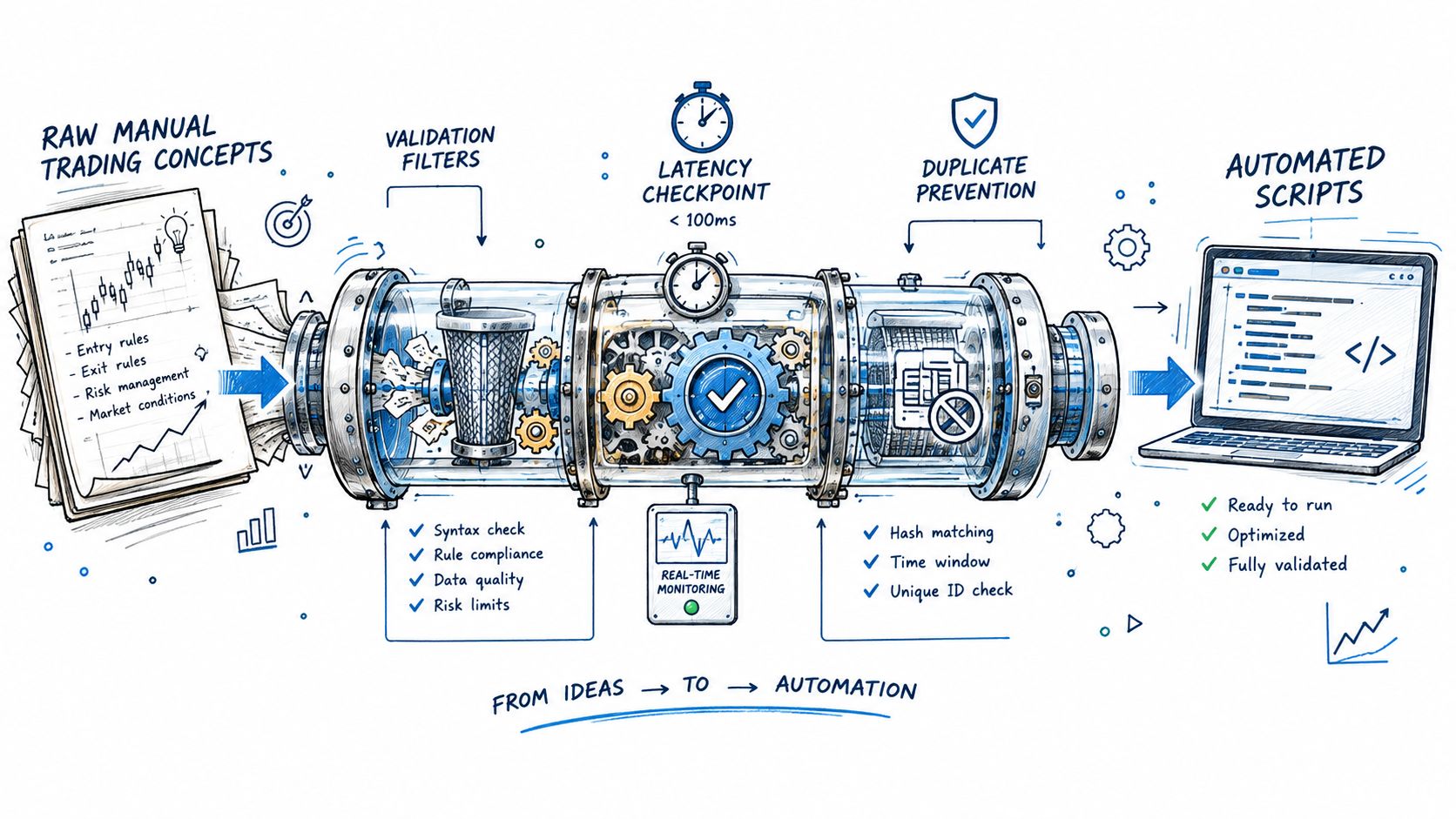
Test failure states, not only successful entries
Send or recreate conditions that expose the controls your live system will need. Pause the workflow before a new entry and confirm that an existing risk-management path remains understandable. Repeat the same event and verify that the system treats it as a duplicate rather than a new instruction. Resume the workflow and confirm that state does not reset on its own.
TradingView's own rules for competition settings show that paper environments can include instrument-specific limits, borrowing rules, preset balances, and transaction-rate restrictions. Those constraints are reminders that simulation isn't a frictionless copy of live execution. The platform's alert frequencies create another source of divergence, because “every time” and “bar close” can lead to materially different event streams.
A webhook implementation should expose enough information to diagnose each step. The TradingView webhook documentation is a useful reference when checking how alert messages are routed and what evidence you should retain. Don't settle for a green strategy result if you can't explain which event created each simulated position.
Portfolio analytics can help you evaluate the result after events are recorded. TradingView allows paper sub-accounts to be imported into Portfolios, but the import behaves like a CSV-style transfer rather than a live sync, according to its paper-trading portfolio update. That makes it useful for analysis, not proof that the alert-to-execution chain is working in real time.
Best Practices for Realistic Backtesting
A short run can flatter almost any strategy. A few favorable trades may reflect market conditions that suit the rules rather than a durable edge, and paper trading can remove emotional pressure while leaving the underlying assumptions untouched.
One independent TradingView guide recommends running a paper-trading process for at least 50 trades or a full month, whichever is longer, so the sample includes a difficult period rather than only a lucky streak. The recommendation appears in this paper-trading methodology guide. Treat that as a minimum process discipline, not a guarantee that the strategy is ready.
Record decisions at the moment they happen
The journal should capture more than profit and loss. Log the setup, trigger, invalidation level, target, planned size, actual size, alert frequency, and whether the order behaved as expected. Record the time the signal appeared and the time the simulated order changed state when those details are available.
A useful review sheet can include:
| Review item | What to examine |
|---|---|
| Rule adherence | Did the entry and exit follow the written setup? |
| Execution assumptions | Did the simulated fill depend on a price that may not be available live? |
| Costs | Were commissions included in the account configuration? |
| Alert behavior | Did the chosen frequency create extra or late events? |
| Position state | Did the account show the same position your strategy expected? |
| Trader behavior | Did you override, delay, or ignore a signal? |
Slippage deserves special attention even when the simulator doesn't reproduce it exactly. Note where the market moved between the signal and the assumed fill, then decide how you'll represent that difference in your evaluation. A paper result that depends on precise fills at fast-moving prices deserves skepticism.
The objective isn't to prove that every trade wins. It's to discover which assumptions fail before those assumptions meet real money.
Don't modify the rules after every losing trade. Preserve the version, finish the planned sample, and then review clusters of failures. If you change the trigger, exit, timeframe, and sizing together, you won't know which adjustment affected the outcome. Separate strategy changes from execution changes so the journal remains interpretable.
Finally, review the operational record alongside the performance record. A profitable sample with missing alerts, duplicate events, or unexplained position states is not a successful automation test. It's an incomplete result with a favorable balance.
Transitioning from Simulation to Live Markets
Readiness comes from agreement between several records. The paper account should reflect the rules you intended to trade, the journal should explain each decision, and the alert log should reconcile with the resulting order states. If one of those records is missing, reduce the scope of the next test rather than increasing exposure.
Use a staged transition:
- Keep the rules fixed. Don't change Pine Script parameters at the same time you change execution settings.
- Start with minimal exposure. Treat the first live trades as an operational check, not as a performance test.
- Retain manual oversight. Watch alerts, order states, and exits until the workflow behaves consistently.
- Keep a pause path available. You need a way to stop new entries without losing visibility into existing risk.
- Review every event. Compare the alert, payload, broker response, and final position after each early trade.
For traders moving from TradingView alerts to Robinhood, the Robinhood connection documentation can help clarify the account connection and routing requirements. The broader principle applies regardless of the destination. Don't treat a live broker connection as the next button after paper trading. Treat it as a separate environment with separate failure modes.
Paper trading has done its job when it gives you an honest operating picture, not when it produces an attractive equity curve. You should know which events create entries, how exits are handled, what happens to repeated messages, and how you'll pause the system when conditions change.
Pineflows helps turn TradingView Pine Script alerts into an auditable execution workflow with test mode, payload inspection, duplicate handling, delivery status, and pause controls. If you're preparing a Robinhood strategy for live deployment, visit Pineflows to test the alert-to-order path before enabling real orders.